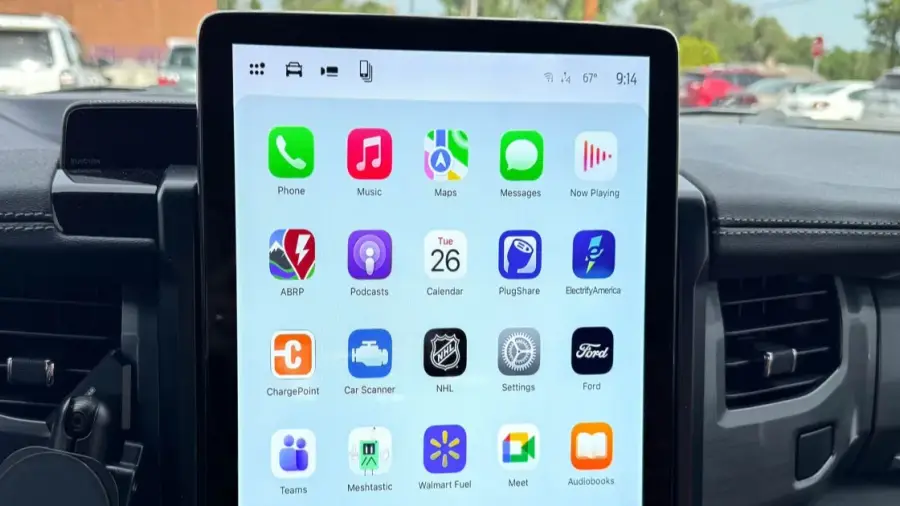
Apple CarPlay memberikan kemudahan dalam mengakses aplikasi di iPhone Anda saat berkendara. Namun, seringkali aplikasi yang muncul di layar kendaraan tidak sesuai dengan kebutuhan Anda. Berikut adalah cara mudah untuk mengatur aplikasi CarPlay agar lebih rapi dan sesuai harapan.
Langkah Pertama: Buka Pengaturan iPhone
Anda tidak perlu berada di dalam mobil untuk mengatur aplikasi CarPlay. Cukup buka aplikasi Pengaturan di iPhone Anda.
Pilih Menu Umum
Dari tampilan utama Pengaturan, gulir ke bawah dan pilih Umum. Di sinilah Anda akan menemukan berbagai opsi pengaturan.
Masuk ke Pengaturan CarPlay
Setelah memilih Umum, cari dan pilih CarPlay. Anda akan melihat daftar kendaraan yang telah terhubung dengan CarPlay. Ketuk nama mobil Anda untuk melanjutkan.
Atur Aplikasi CarPlay Anda
Di halaman berikutnya, Anda akan menemukan opsi untuk mematikan CarPlay atau melupakan kendaraan. Untuk mengedit aplikasi, pilih Aplikasi dari daftar. Anda akan melihat semua aplikasi di iPhone yang mendukung CarPlay.
Beberapa aplikasi seperti Telepon, Musik, Peta, dan Pesan tidak dapat dihapus. Namun, Anda bisa mengatur aplikasi lain. Untuk menghapus aplikasi dari tampilan CarPlay, ketuk tombol merah di samping nama aplikasi. Sebaliknya, untuk menambahkannya, ketuk tombol hijau. Setelah itu, Anda juga dapat menyusun ulang urutan aplikasi dengan menariknya menggunakan pegangan tiga garis.
Jika Anda melakukan pengeditan saat berada di dalam mobil, perubahan akan terlihat langsung. Namun, jika dilakukan sebelum perjalanan, aplikasi akan tersusun rapi saat Anda menghubungkan iPhone ke mobil.
Dengan mengatur aplikasi CarPlay, Anda dapat menikmati pengalaman berkendara yang lebih fokus dan minim gangguan. Tidak perlu lagi melihat aplikasi yang tidak perlu saat berkendara, sehingga meningkatkan keamanan dan produktivitas Anda.
Sumber: https://telset.id/how-to/cara-atur-aplikasi-apple-carplay-di-iphone-dengan-mudah