Menonton video di YouTube sering kali menjadi pengalaman yang menyenangkan, namun sering kali terputus oleh iklan yang mengganggu. Jika Anda merasa terganggu dengan iklan yang terus-menerus muncul, DuckDuckGo kini menawarkan solusi gratis yang patut dicoba. Artikel ini akan membahas cara menggunakan pemblokir iklan YouTube dari DuckDuckGo dan bagaimana cara kerjanya.
Pemblokir Iklan DuckDuckGo: Solusi Bebas Iklan
DuckDuckGo memperkenalkan pemblokir iklan untuk YouTube yang sangat efektif. Dengan fitur ini, Anda bisa menikmati video tanpa iklan yang mengganggu. Anda tidak perlu lagi membayar langganan YouTube Premium untuk menikmati konten tanpa iklan. Ini adalah alternatif yang menarik bagi banyak pengguna.
Cara Mengaktifkan Pemblokir Iklan di DuckDuckGo
Jika Anda menggunakan perangkat Mac, PC Windows, atau iPhone, pemblokir iklan ini sudah aktif secara default di versi terbaru browser DuckDuckGo. Yang perlu Anda lakukan hanyalah memastikan aplikasi tersebut diperbarui, lalu buka YouTube dan nikmati video tanpa gangguan iklan.
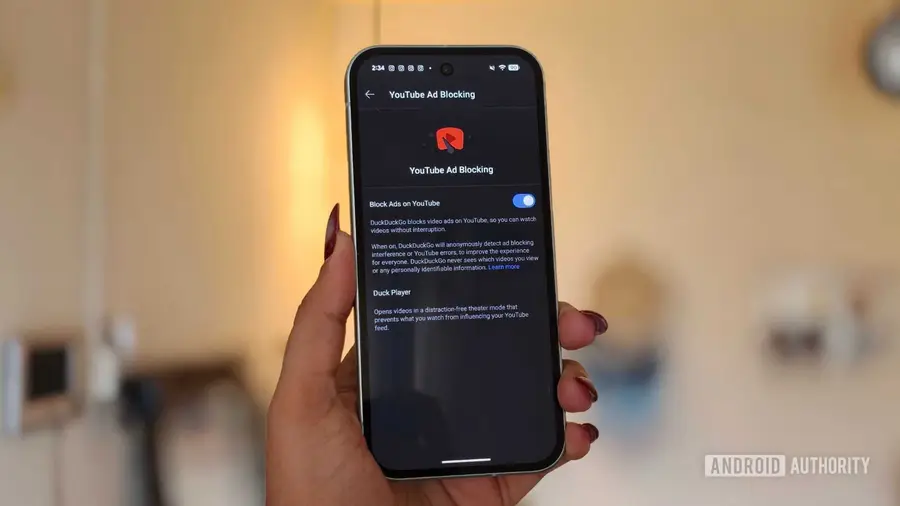
- Pengguna Android: Untuk pengguna Android, Anda perlu mengaktifkan pemblokir ini secara manual. Pastikan aplikasi Anda terbaru, kemudian ikuti langkah-langkah berikut:
1. Buka aplikasi DuckDuckGo.
2. Masuk ke pengaturan dan aktifkan pemblokir iklan.
3. Buka YouTube dan mulai menonton.
Pengalaman Menonton Tanpa Iklan
Setelah mengaktifkan pemblokir, pengalaman menonton saya sangat berbeda. Saya mencoba menonton episode satu jam dari acara favorit saya dan tidak ada iklan yang muncul. Ini adalah pengalaman yang sangat menyenangkan, karena saya tidak perlu menyaksikan iklan yang mengganggu. Saya juga mencoba berbagai jenis video, mulai dari musik, podcast, hingga dokumenter, dan semuanya berjalan lancar tanpa buffering.
Dukungan Fitur Tambahan: Duck Player
Selain pemblokir iklan, saya juga menemukan fitur menarik lainnya bernama Duck Player. Fitur ini memungkinkan Anda menonton video menggunakan pemutar video bawaan DuckDuckGo yang lebih menjaga privasi. Dengan Duck Player, Anda tidak akan dilacak dengan cookies atau iklan yang dipersonalisasi. Ini memberikan pengalaman menonton yang lebih bersih dan lebih privat.
Saya sangat terkesan dengan bagaimana DuckDuckGo berhasil mengatasi tantangan pemblokiran iklan di YouTube, mengingat platform ini sering kali menindak pemblokir iklan. DuckDuckGo menggunakan daftar filter yang dikelola oleh komunitas dari uBlock Origin, yang terus diperbarui untuk memastikan efektivitasnya.
Dengan semua fitur ini, DuckDuckGo menawarkan pengalaman menonton YouTube yang nyaman dan bebas iklan. Saya berharap fitur ini akan terus berfungsi dengan baik, sehingga pengguna tidak perlu lagi terganggu oleh iklan saat menonton video favorit mereka.
Sumber: https://www.androidauthority.com/duckduckgo-youtube-ad-blocker-how-use-3686151/