Samsung has recently transformed the way Galaxy users manage their photo backups. With the latest update, the Samsung Gallery app now integrates directly with Google Photos, replacing the previous OneDrive backup system. This change is particularly beneficial for users who appreciate the Samsung Gallery's interface but prefer using Google Photos for cloud storage.
Transition from OneDrive to Google Photos
For years, Samsung Gallery relied on OneDrive for cloud backups, allowing users to securely store their photos without needing manual intervention. This integration made it a strong contender against Google Photos, especially for those who were already invested in Microsoft’s ecosystem. However, as of September 30, 2026, Samsung has discontinued the OneDrive integration, meaning users will no longer see the “Sync with OneDrive” feature in the Gallery app.
This change does not affect previously backed-up content. Users can still access their OneDrive backups, but they must do so through the dedicated OneDrive app. While this may be less convenient, the option remains available for those who wish to continue using Microsoft's cloud storage.
How to Set Up Google Photos Sync
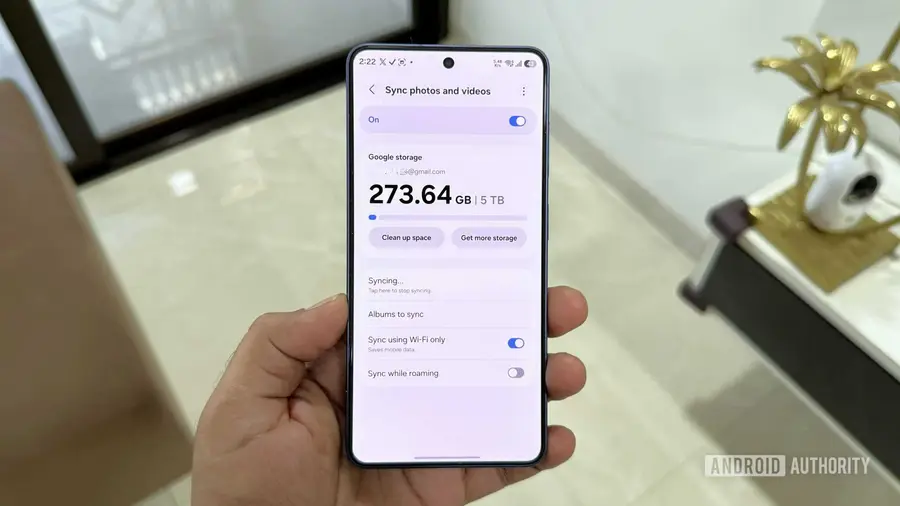
Setting up the sync feature with Google Photos in the Samsung Gallery app is a straightforward process. First, ensure that you have the latest version of the Gallery app (15.9.01.7 or newer) by checking for updates in the Galaxy Store. Note that only personal Google accounts are compatible with this feature; work or school accounts are not supported.
Once your app is updated, enabling Google account backup is simple. The Gallery app will display your Google account’s storage status and begin the backup process. By default, it backs up photos from your camera roll, but you can customize this by selecting additional albums to sync. Users can also enable backups over mobile data or while roaming through the settings menu.
Maintaining Sync Between Apps
After configuring the sync, your Samsung Gallery and Google Photos libraries will remain synchronized. This means that any photo you back up can be accessed through the Google Photos app or the web. Furthermore, deleting a photo in one app will automatically remove it from the other, ensuring that your libraries are always up to date.
Editing photos also behaves differently depending on the app used. Changes made in Samsung Gallery will reflect across all Samsung devices but will appear as new photos in Google Photos. Conversely, edits performed in Google Photos will update the corresponding images directly in the Gallery app.
Comparing Backup Options
While the new Google Photos sync feature is a significant improvement, it doesn't fully replace the Google Photos app. One major drawback is that photos backed up via Samsung Gallery will not appear in Google Photos Memories, Highlights, Live Albums, or Search functions. For users who value these features, backing up directly through Google Photos is still recommended.
Additionally, Samsung Gallery will only display photos that have been backed up through its Cloud Sync. Photos uploaded from other devices using the Google Photos app will not show up in Samsung Gallery. Unlike Google Photos, Samsung Gallery does not allow for manual backups of specific images or videos, which may limit its appeal for some users.
Despite these limitations, using Samsung Gallery for backups offers its own advantages. Most notably, users can manage their backups without needing to keep the Google Photos app installed solely for that purpose. However, users should be aware that they will miss out on some of the full Google Photos features, such as the advanced search capabilities.
This transition may pose a challenge for Microsoft 365 subscribers who previously relied on OneDrive for storage. They will need to adjust to the new backup methods. For those already embedded in Google's ecosystem, however, this shift is largely seen as a positive upgrade.
In conclusion, the integration of Google Photos into Samsung Gallery simplifies the backup process for many users. It allows for seamless photo management while preserving the ability to access cloud storage. What are your thoughts on this change? Does it enhance your photo management experience, or do you find it complicates things? We encourage you to share your views in the comments section.
Source: https://www.androidauthority.com/samsung-gallery-google-photos-sync-how-use-3717795/