Samsung's Gallery app is known for its range of features, but many users are unaware of the hidden functionalities that can enhance their experience. While tools like the Audio Eraser and video editor are well-known, there’s a secret menu called Gallery Labs that contains a treasure trove of additional capabilities.
What is Gallery Labs?
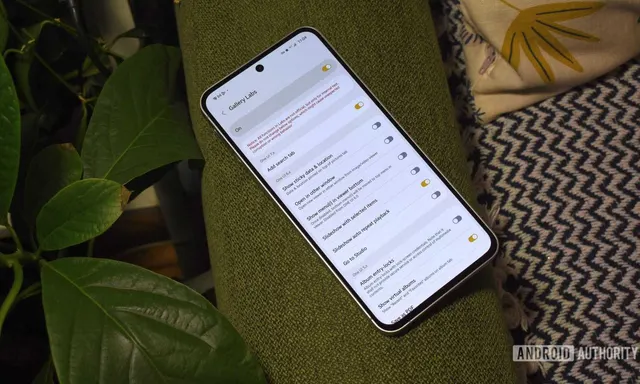
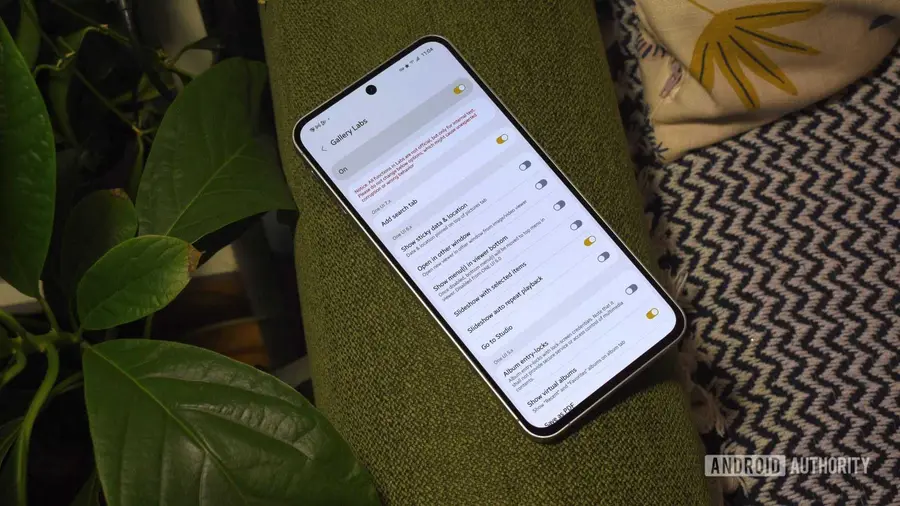
Gallery Labs is a hidden section within the Samsung Gallery app that holds experimental features. Unfortunately, most Galaxy users don't realize it exists. To access these features, you'll need to enable Gallery Labs first. Simply navigate to the Gallery settings, and once you see the message indicating that Gallery Labs is enabled, you can explore the new options.
Helpful Features in Gallery Labs
Among the various features in Gallery Labs, one standout is the Album entry-lock feature. This option allows users to lock specific albums using a PIN or fingerprint, providing an extra layer of security for sensitive photos and videos. While Samsung already offers a Secure Folder for private files, the Album entry-lock feature streamlines the process by allowing users to secure albums without moving files around.
Another useful addition is the option for a slideshow with selected items. Instead of scrolling through every photo in an album, users can select specific images to create a custom slideshow, making it easier to share only the desired photos.
Creating PDFs and Enhancements
The Gallery app's 'Create' menu already supports GIFs and collages, but enabling the Save as PDF option in Gallery Labs adds a new dimension. Users can select images to compile into a PDF document, which opens in Samsung Notes for easy annotation and organization.
For those who find navigating videos challenging, Gallery Labs offers a Legacy video seekbar option that simplifies video scrubbing. This replaces the standard filmstrip view with a more traditional seekbar, making it easier to jump to specific moments in lengthy videos.
Improving Photo Organization
Samsung Gallery's photo organization can be overwhelming, especially in albums with thousands of images. The Timeline in album feature groups photos by date, akin to the main Pictures tab, allowing for easier navigation by day, month, or year.
Additionally, users can disable the video preview feature, which can be disruptive while scrolling through images. This stops videos from autoplaying, thus conserving battery life and improving scrolling speed.
Regular Updates and Exploration
Gallery Labs receives regular updates, making it worthwhile to check back frequently for new features. If you ever feel overwhelmed by the changes you've made, there's an option to clear all settings in Labs, allowing you to revert to the original state. Alternatively, you can disable Gallery Labs entirely if you prefer a simpler interface.
In conclusion, while the Samsung Gallery app is packed with features, the hidden Gallery Labs menu offers even more functionality that many users overlook. Exploring these options can significantly enhance the way you manage and share your photos and videos.
Source: https://www.androidauthority.com/samsung-gallery-labs-menu-how-find-3698693/